I’ve neglected this site for quite a while, mostly because I haven’t produced much new material. For the last few weeks I’ve been editing old material though, and I plan to post some soon. Mostly what I’m doing is playing with the “AI” driven features Adobe has been rolling out at a steady cadence for the last year or so.
Initially Adobe and their many influencers heavily promoted Photoshop’s “generative fill” capabilities — that is the ability to add completely new elements to an image or radically change things like clothing. I played around a bit with that, but I have two major problems: first, adding things that weren’t there is wildly unethical, at least if the photo is claimed to be a representation of reality. Second, the results were usually ridiculously cartoonish,1 failing to improve images at all. Now more recently Adobe has been adding tools to remove elements of photos, mostly “distractions” like people and reflections. I’m a bit more sanguine about this use as long as it’s not changing the essential content. Of course removing things necessarily means the tools have to add things to fill in the newly created gaps, and you can also do things like this:

I’ve actually seen examples like this on Youtube. But I’m trying to make more modest changes that I think are at least arguably ethical. As an example here is a pair of images of London’s Tower Bridge taken on a boat tour of the Thames way back in 2016:
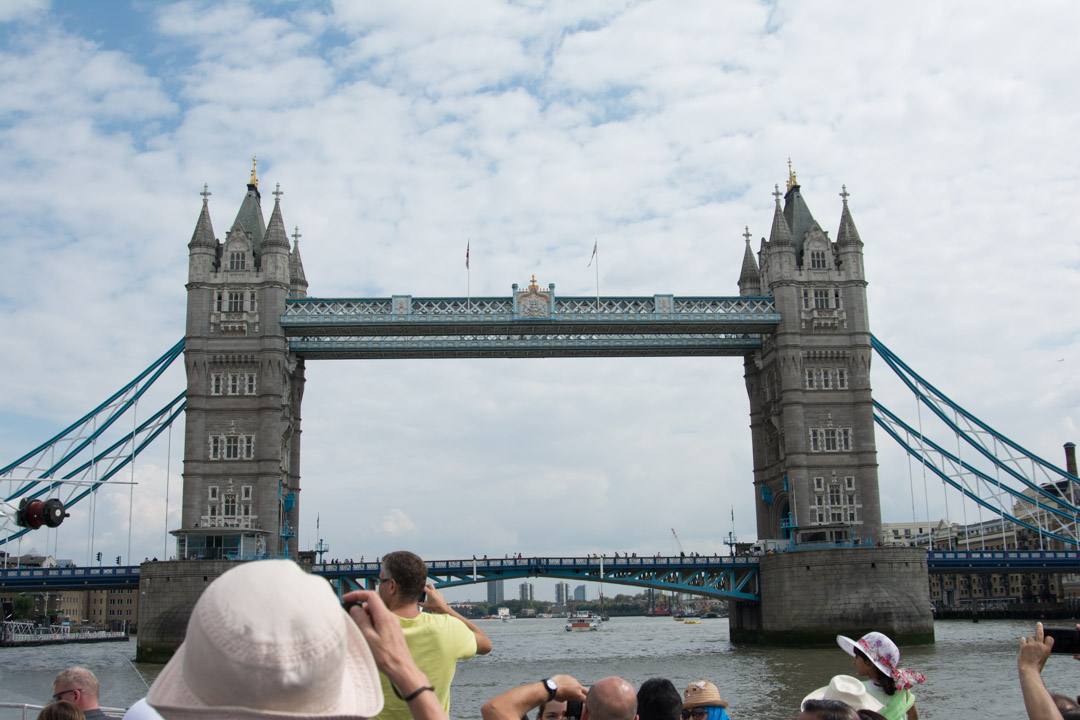
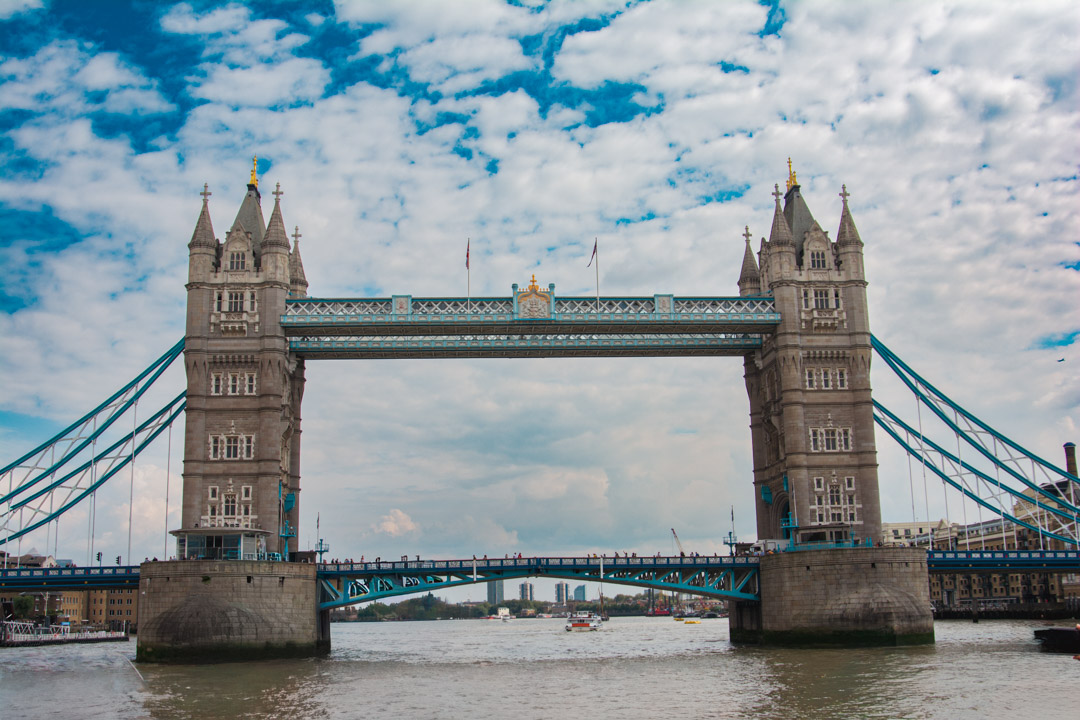
Of course this was a pretty crowded boat, and unless you can elbow your way to an edge the picture on the left is what you get. So, I went into the most recent (as of 8/2025) beta version of Photoshop, found the remove distractions tool, selected people, added a bit to the selection, and let it do its thing. Pretty seamless; so much so that I wonder if the AI was specifically trained on landmarks like this.
Back in Lightroom the other changes I made were to apply presets to liven up the sky and the bridge. These just do some automated masking and tweak multiple color settings. No further details were changed. Photoshop has a sky replacement tool, but I didn’t use it. These were actual London clouds.
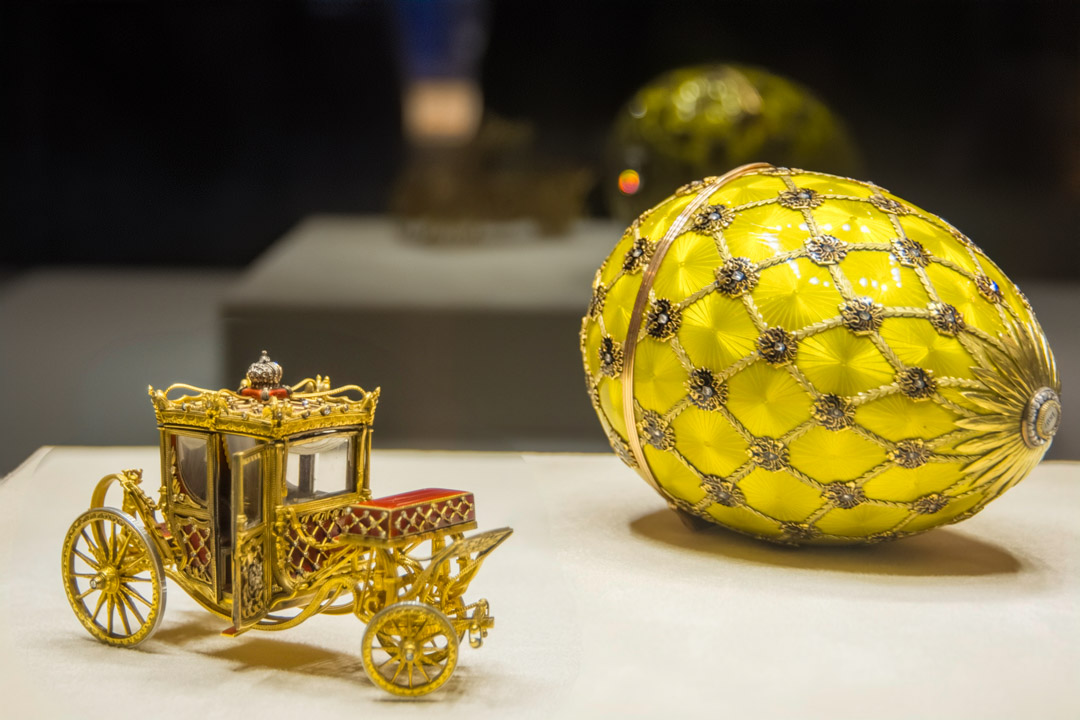
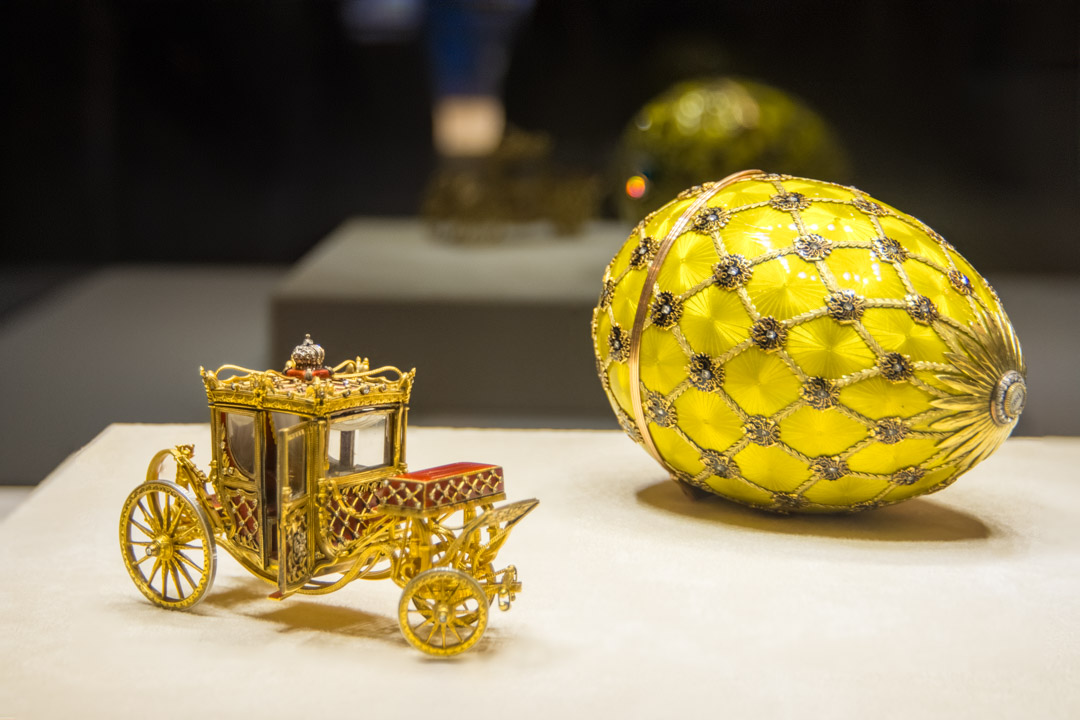
One more example: here are a pair of pictures from a museum in St. Petersburg, Russia containing Faberge eggs and other artifacts from, if I remember correctly, the last Tsar. This particular exhibit had one of the more beautiful eggs in the collection and a really nice miniature carriage. Unfortunately there was no way to get them both in focus, so I took a few with the egg in focus and another few with the carriage.
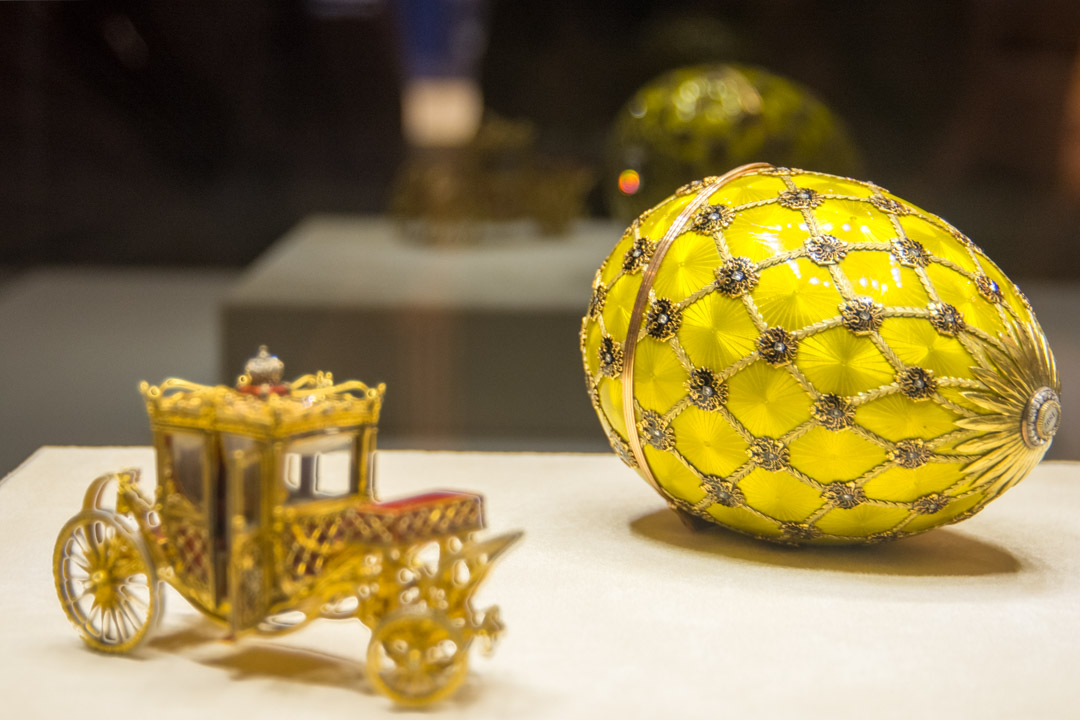
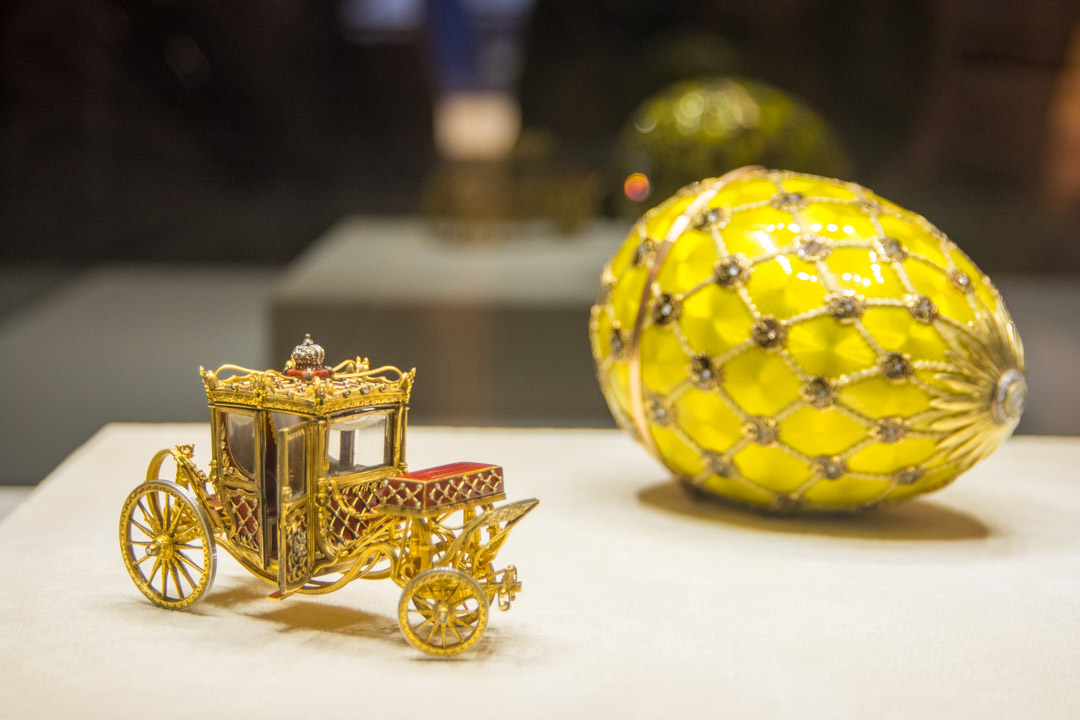
I tried two different tools in Photoshop to combine the images. First I just used the lasso tool to select around the carriage, copied the selection and pasted it into a new transparent layer in the image with the in focus egg, moved it around to line up the pedestal edges and block the out of focus carriage, then used the brand new “harmonize” tool to blend it into the image. The other way I tried was the align and blend layers tool that’s been in Photoshop for some time. That tool is really designed for focus stacking multiple images, but it did pretty well with just two. Finally, back in Lightroom I used the remove reflections tool. Notice the out of focus reflection of the display is still there. Some diffuse stray reflections were removed. That’s fine I think. This is a museum piece after all and the viewer knows it’s in a glass case.
A new gallery of old images should be on the way soon. I’m also thinking of trying to monetize this site to some extent. Not with outside ads, definitely. But maybe providing a way to buy prints. We’ll see.
- which somewhat negates the ethical issue. ↩︎